

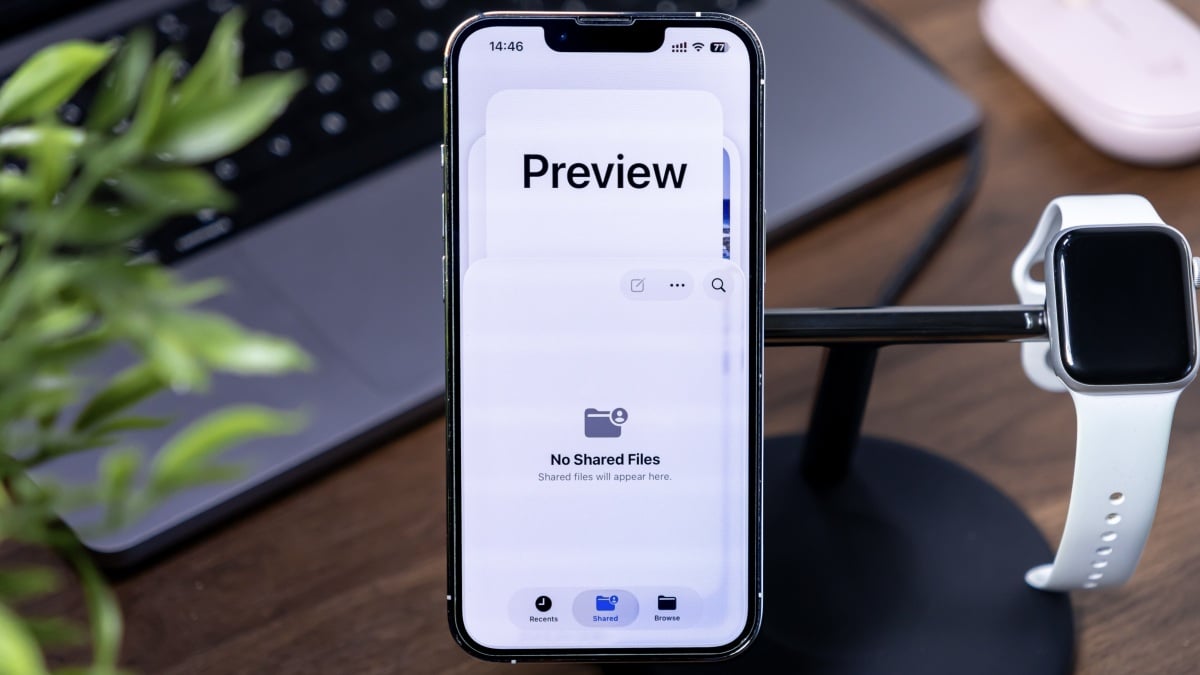
Your iPhone is essentially a computer that fits in your pocket, so it only makes sense for Apple to treat it as such. To that point, with iOS 26, both the iPhone and the iPad get a new app that was a Mac exclusive for over 20 years: Preview.
What can you do with the Preview app?
Like on macOS, the Preview app for iOS and iPadOS is largely made for viewing PDFs and other documents. When you first open the app, you’ll see the options to either create a new document or scan one with your iPhone’s camera.
Most of the time, however, you probably you have an existing document you want to open using Preview. If so, you’ll find those options in the bottom half of this starting page. This is Preview’s integration with the Files app: You can browse your documents from Files and open any with Preview.
Once you have a document loaded up, you’re able to view, annotate, markup, and edit it. If you need to fill out a document with your information, you can use AutoFill to automatically enter contact info and other saved details. You can add your signature, and if you’re on your iPad, you can use your Apple Pencil to draw on the document. Otherwise, you can use your finger to mark up the file.
You can also export documents from the Preview app. You can work with file types including HEIDC, JPEG, PDF, PNG, and TIFF. And as with Preview on macOS, there are a number of controls when exporting, such as resolution, embedding text, and saving images as JPEG.
While there’s a lot you can do here, the biggest strength I see for this mobile Preview app is using it as a tool for legal documents. If you need to sign an important document, you can quickly scan it into the app, add your signature, fill out any information—perhaps automatically with AutoFill—then email the doc out, all without needing to jump to your computer.
Preview on iOS is still a work in progress
If you look at Preview’s App Store page, you’ll notice some mixed reviews. After using the app for a bit, I understand why. Preview for iOS is definitely still a work in progress and in need of some key upgrades.
What do you think so far?
The biggest quirks I noticed immediately: The main menu page is cluttered, with the Files integration looking more like a glitch than a dedicated window. Speaking of Files, Apple made the decision to have documents in Files open in Preview. At first, that sounds like a good idea, until you experience it in person on both iOS and iPadOS. Being dragged out of the Files app when you’re not expecting it is jarring, especially when you’re used to viewing your docs directly in the app.
The workaround here is to avoid Files for opening, well, files. Use the Files integration within Preview, so you stay in the same app. How intuitive. You could also choose to delete the Preview app, but that’s a bit of a shame when it’s such a major update for iOS and iPadOS 26.
Also, when you choose the Markup option, there’s no clear way to exit without closing the whole app first. As far as I can tell, the only way to do so is to tap the three-dots in the top right, then tap Markup to exit this menu. The Markup button should really stay on screen as it does on macOS, so it’s obvious how to dismiss it.
