

Credit: Ian Moore / Lifehacker Composite; kamada kaori / iStock / Getty / Mozilla
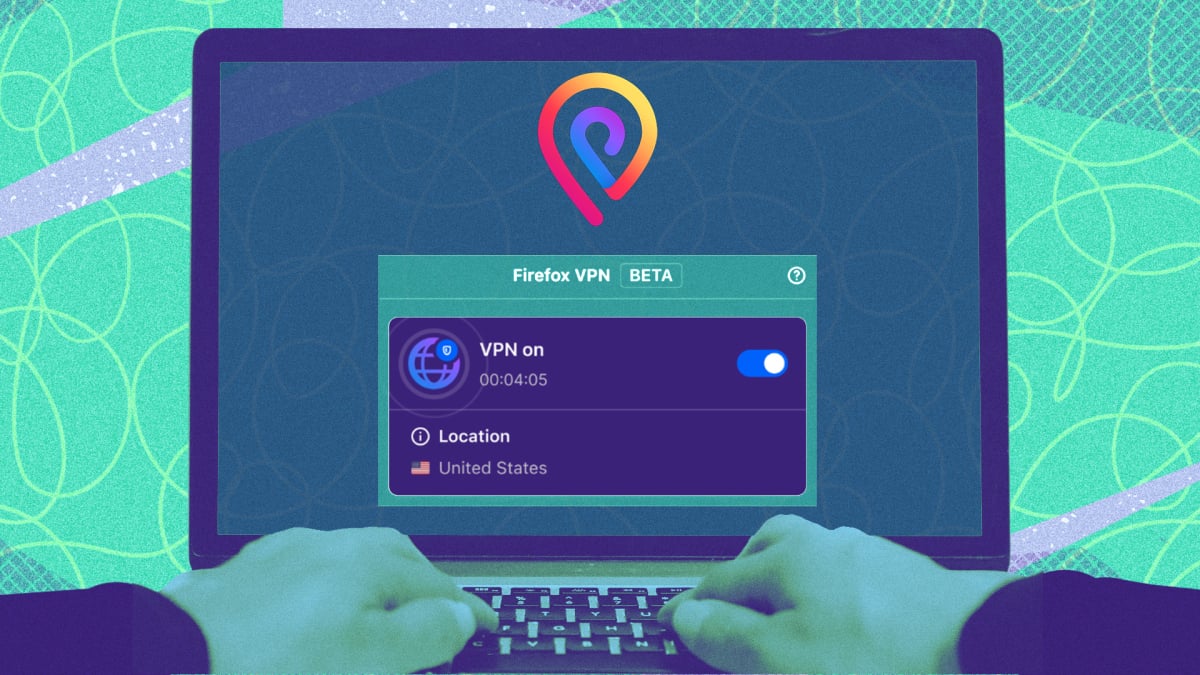
If you use Firefox, and you’re lucky, then you might be getting a free VPN. Over the next few months, Mozilla says it will be testing a “free, browser-only VPN” for some users, but you’ll need to rely on the luck of the draw if you want to try it yourself.
That’s because Mozilla is only enabling the feature for randomly selected users, at least for now. The announcement technically came in June, but fortunate writers at a number of different tech sites are now reporting that they’re finally starting to see the feature pop up.
How Firefox’s free VPN compares
The VPN, once fully implemented, would put Firefox in competition with Opera and Microsoft’s own Edge browser, but ahead of other alternatives like Chrome and Safari, which do not offer free VPNs at time of writing.
The key selling point here, it seems, is that Firefox VPN will run on Mozilla’s VPN network, which likely means it will use the same respected Mullvad servers as Mozilla’s paid VPN service. Incidentally, Mullvad is currently Lifehacker’s favorite VPN for privacy.
That said, don’t expect the same functionality from the free offering as a full Mozilla VPN subscription. While Mozilla VPN can encrypt all web traffic from up to five devices at once, Firefox VPN only covers your browser. Also, while Mozilla VPN offers servers across 30 countries, allowing you to act as if you’re browsing in that country, Firefox VPN will instead automatically connect to the nearest available server, which is likely to be in the same country as you.
Still, the move is a boon for privacy, as the free VPN will hide your IP address and mask your traffic from your ISP. As for Mozilla itself, the company says it will collect “only the technical data needed to keep Firefox VPN reliable and secure,” and will automatically delete logs linked to your account after three months. Firefox VPN also purportedly “never logs the websites you visit or the content of your communications,” and there are no stated usage limits at this time.
What do you think so far?
All of that is great news, particularly as governments and websites start to ask for more personal data. Sadly, you likely won’t be able to use Firefox VPN to get around a website block in your state (unless it happens to direct your traffic through another state, if you’re lucky), but it’s always a good idea to let websites and ISPs collect as little personal information about you as possible.
How to check if you have the free Firefox VPN
Because the VPN is only going out to random testers at the moment, it could take a while until you’re actually able to access it. Check if you can try out Firefox VPN by opening the browser and seeing if there’s a VPN setup prompt in the top-right corner, next to the toolbar.
If it’s there, hit the Next button to begin. The setup process will guide you through turning it on, which will involve signing into (or creating) a Mozilla account and hitting a toggle. To turn Firefox VPN off after enabling it (useful if a website blocks VPN traffic), simply click the VPN icon in the Firefox toolbar and toggle it off.
