

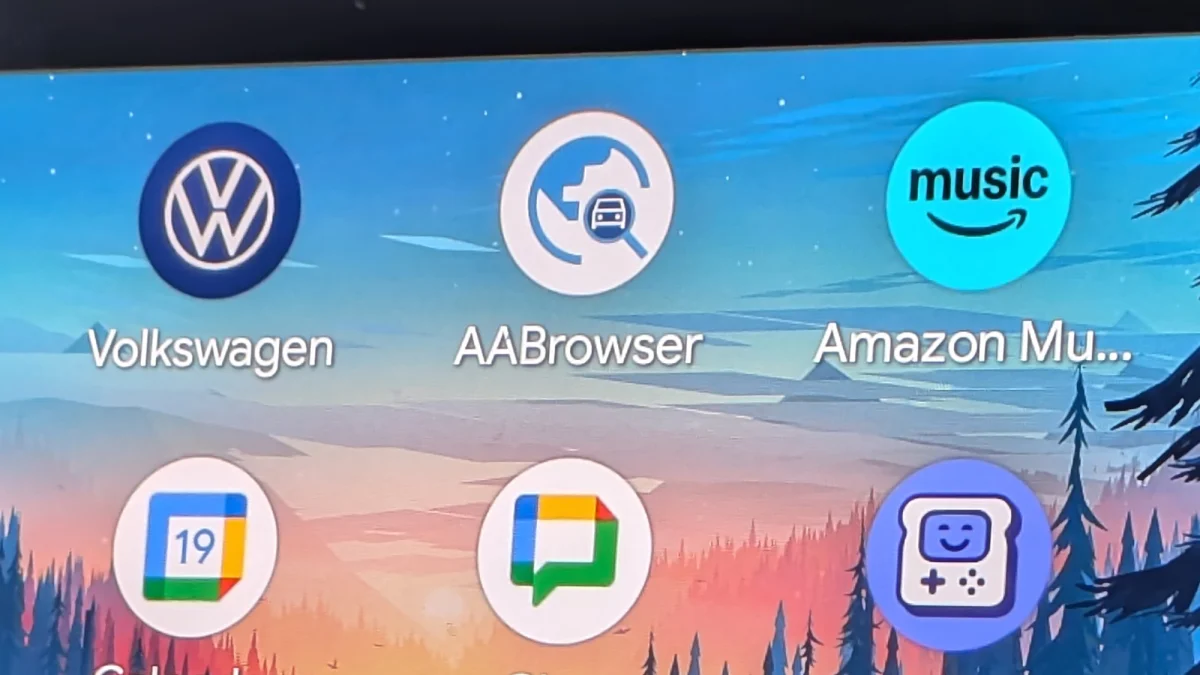
You can do a lot with Android Auto, but what you can’t do is install a web browser—at least not with the default, out-of-the-box configuration. It is actually possible to get a window on to the web with a little bit of tweaking, and the help of the open source AA Browser built especially for Android Auto.
Getting a web browser up on your car dashboard may not seem like much of an improvement over browsing on your phone screen, but it also enables another feature on your vehicle’s display: video playback. Through AA Browser you can get at pretty much any streaming site you want and load up some video.
Some serious safety warnings are required here, though. You should only load up videos on your car’s Android Auto screen when you’re parked, stationary, and not going anywhere. Watching anything on the move—whether it’s on your phone or on your vehicle dashboard—not only risks your life, it risks the lives of everyone else on the road with you.
In fact, AA Browser will disable itself while your vehicle is moving, but it’s worth giving out the warning in any case, for this and any other app. With that out of the way, here’s how you can load up a web browser on Android Auto, and make your parked-up time inside your car more entertaining.
Browser setup and installation
Like Android as a whole, Android Auto has a developer mode that gives you access to a selection of extra settings. From Settings on Android, tap Connected devices > Connection preferences > Android Auto (Pixels) or just Connected devices > Android Auto (Galaxy phones). Scroll down to the bottom of the screen, tap Version, then tap Version and permission info seven times.
You should then see a pop-up asking you if you’re sure you want to enable developer settings for Android Auto, so tap OK to confirm. You then need to open up the AAAD (Android Auto Apps Downloader) app APK in your phone’s browser, tapping through the security warnings about running non-Play Store apps on your device if they show up.
AAAD will give you access to the AA Browser.
Credit: Lifehacker
AAAD gives you access to a selection of Android Auto apps that haven’t been specifically approved by Google, including AA Browser. Tap through the various introduction screens, give the app the permissions that it needs to install other apps, and then find AA Browser in the list of available apps. Tap Install and then tap through the confirmation pop-ups to get the app on your phone.
You’ll be asked if you want to open AA Browser straight away: You can use it as a normal web browser on your phone, though there’s not really much to look at. It’s designed to be used primarily on your Android Auto screen, and it should now show up as an available app when your phone is connected to your vehicle.
What do you think so far?
Using AA Browser in your car
Provided you’re safely stopped in your vehicle, you can launch AA Browser from the main apps list on the Android Auto interface (you may also get a prompt to launch it the first time you connect, after installing the app). You get taken to the Google Search homepage to begin with, and from there you can go anywhere you like.
As with any other Android Auto app, if you tap inside an input field, you’ll see a keyboard pop up on screen that you can use to enter web addresses and login credentials, and you can use the touchscreen to navigate around. To get to the URL address bar, tap anywhere on screen, then tap the blue arrow in the lower left corner.
Entering and editing URLs in AA Browser.
Credit: Lifehacker
The next screen also gives you options for going back through your browser history and accessing your bookmarks—a handy way of making sure you can jump back to the sites you need without having to tap our their URLs every time. There’s also the option to request the desktop versions of sites rather than the mobile versions.
While certain sites don’t seem to like the AA Browser, most of the pages I’ve visited work fine on Android Auto. To quit the browser, you can either tap the Exit button in the top right corner (if it’s visible), or swipe up or down from the top or bottom edges of the Android Auto screen to go back to your other apps.
