

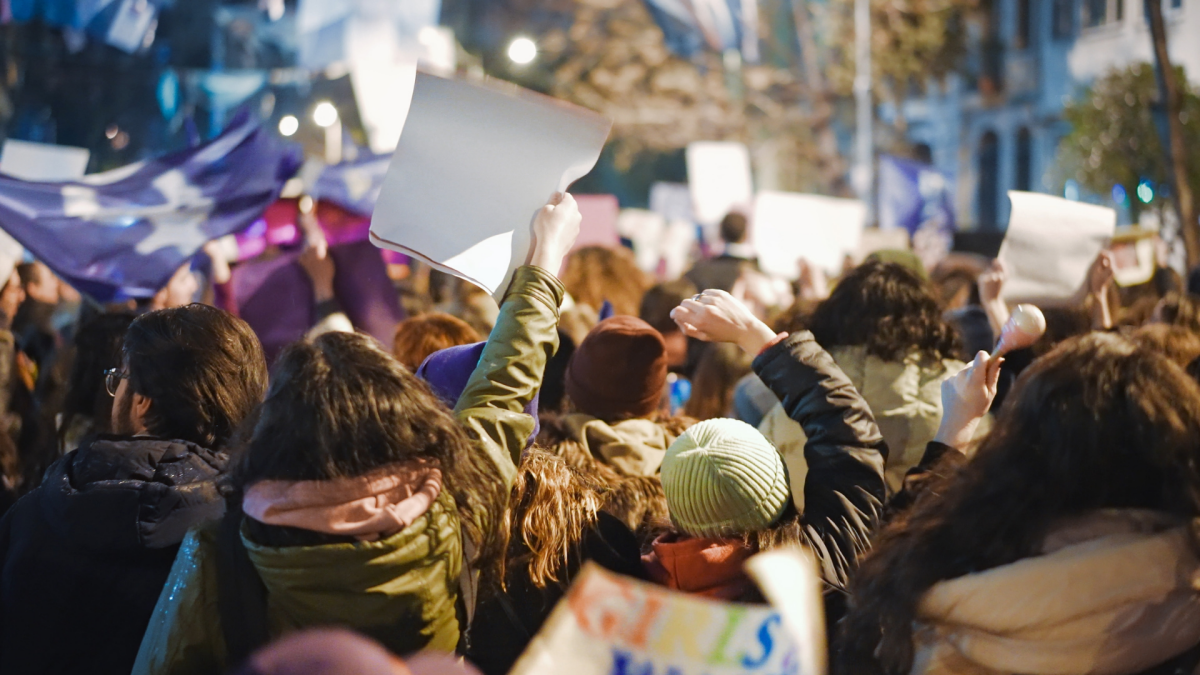
Before you head out to a protest, take some precautions to protect your privacy and both the physical and digital security of any device you bring along. The most secure option, of course, is to leave your phone at home, but you can also lock things down to minimize the risk that your data will be accessible to law enforcement or someone who gets hold of your device.
Thankfully, both iOS and Android have built-in device encryption if you’re using a passcode, meaning that your device’s data cannot be accessed when it is locked. (On Android, go to Settings > Security to ensure Encrypt Disk is enabled). You’ll want to maximize this protection with the following privacy settings.
Turn off face and fingerprint scanning
At an absolute minimum, you’ll want to disable biometric access, such as face and fingerprint authentication, on your device in favor of a passcode or PIN. As the Electronic Frontier Foundation notes, this minimizes the risk of being physically forced to unlock your device and may provide stronger legal protections against compelled decryption.
On iOS, go to Settings > Face ID & Passcode and toggle off iPhone Unlock. You can also set up a stronger passcode—a custom numeric or alphanumeric code—under Change Passcode. On Android, you’ll find the option to delete your fingerprint in favor of your PIN or screen lock pattern under Settings > Security & Privacy > Device Unlock > Fingerprint.
Limit location tracking
Again, the best option to prevent your location from being tracked is to coordinate any details in advance and leave your phone at home. If you must bring it along, keep it off unless you absolutely need to use it.
You can turn on Airplane Mode in advance, as well as disable Bluetooth, wifi, and location services, which keeps your device from transmitting your location. However, note that some apps may still be able to store GPS data and transmit it when an internet connection is available—so again, the safest bet is to keep your device off for the duration.
Airplane Mode can be enabled (and wifi and Bluetooth disabled) in your device’s settings or quick access menu. On Android, go to Settings > Location to disable location services and turn off Location History in your Google account. On iOS, head to Settings > Privacy & Security > Location Services to disable locations entirely.
Turn off previews and notifications
Temporarily disable notifications and screen previews so that if someone gets your device, they won’t be able to glean any information from your lock screen. You can adjust these options under Settings > Notifications on iOS and Settings > Apps & notifications > Notifications on Android.
Adjust screen lock time
Minimize your screen lock time to as short a period as possible so that your screen turns off when you’re not actively using it and will require authentication to reopen. On iOS, go to Settings > Display & Brightness > Auto-Lock and select 30 seconds. The exact path on Android may vary, but typically you’ll find this under Settings > Display or Lock Screen.
Know that most devices have camera access from the lock screen, so you can take photos or record video without actually unlocking your device.
Enable app pinning or Guided Access
App pinning (Android) and Guided Access (iOS) are features that prevent others from navigating through your phone beyond a specific app or screen. This allows you to use an essential feature on your device while locking the rest behind your PIN or passcode. You can enable this preemptively, and if someone grabs your device, they won’t be able to snoop around.
You can find this setting on Android under Security or Security & location > Advanced > App pinning and on iOS under Settings > Accessibility > Guided Access.
What do you think so far?
Use a SIM PIN
You can also lock your SIM card to prevent unauthorized use of your device or SIM card, including access to two-factor authentication codes sent via SMS. This PIN will be required any time your phone restarts or if someone tries to use your SIM card in another device. On iOS, go to Settings > Cellular, select your SIM, and tap SIM PIN. On Android, you’ll find this under Settings > Security > More security settings (the exact path varies by device).
Sign out of, hide, or delete apps
This step will vary depending on what you keep on your phone and your risk tolerance, but you may want to consider signing out of your social media accounts and deleting apps that contain or allow access to sensitive data.
On iOS, you can also lock or hide specific apps: the former requires an extra authentication step to open apps on your home screen, while the latter sends apps to a hidden folder that also requires authentication to unlock. Touch and hold an app icon to bring up the quick actions menu, then tap Require Face ID/Require Passcode.
On Android, you can set up a “private space” to lock apps behind your pattern, PIN, or password. Apps are hidden from the launcher and recent views as well as quick search. Go to Settings > Security & privacy > Private space, authenticate with your screen lock, and tap Set up > Got it.
If necessary, turn on Lockdown Mode or Advanced Protection
Both iOS and Android have strict device-level security modes that significantly limit access to certain app and web features as well as blocking changes to settings. Both were designed with journalists, activists, and other users with access to sensitive data that may be targeted by cyber actors in mind. These settings are overkill for day-to-day use but add a potentially helpful layer of security in high-risk situations.
Enable Lockdown Mode on iOS via Settings > Privacy & Security > Lockdown Mode. On Android, turn on Advanced Protection under Settings > Security & privacy > Advanced Protection.
Protect your privacy after a protest
While the above steps are largely about securing your data during a protest, you should also follow best practices for protecting privacy (yours and others’) after the fact. If you plan to post photos or videos, utilize blurring tools to block faces and other unique identifying features, and scrub file metadata, which includes information like photo location. You can do this by taking a screenshot of the image to post or sending a copy to yourself in Signal, which automatically strips metadata. Signal also has a photo blurring tool, or you can blur in your device’s default photo editing app.
