

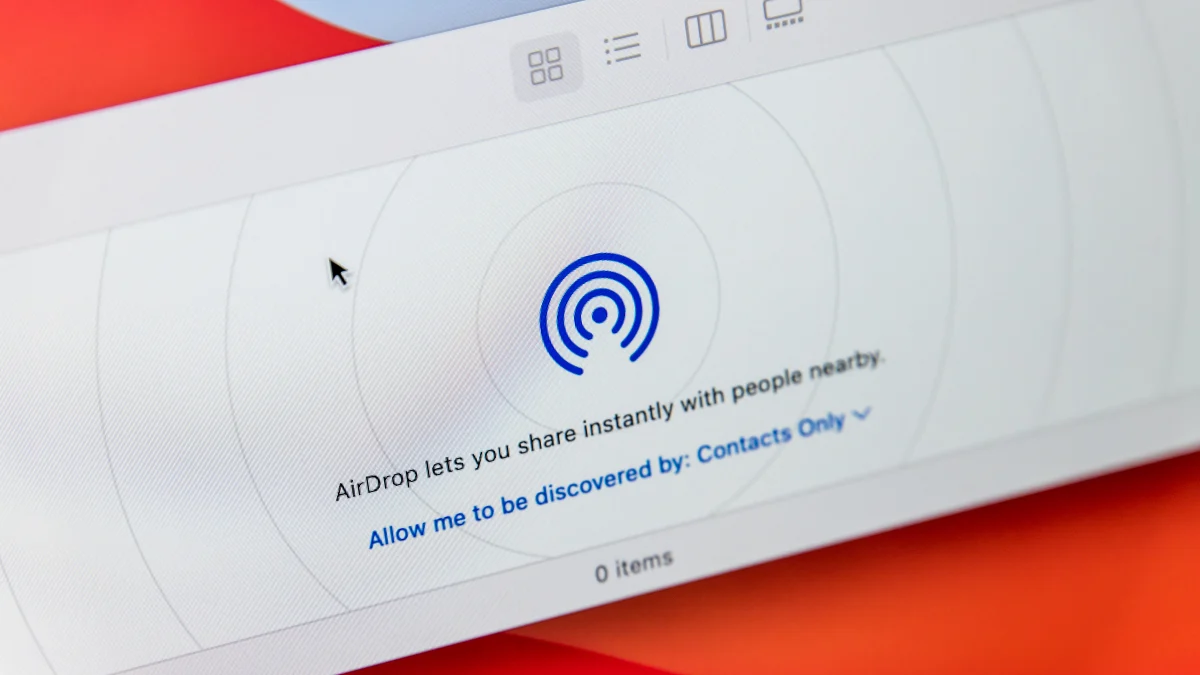
AirDrop is one of Apple’s best features. I use it on a daily basis to share files between my various Apple devices, but it really shines when I’m sharing stuff with other people, or vice versa. It can be tricky to find a quick solution to send larger files. Emails have too low a file size limit, chat apps can compress files, and cloud storage can fill up fast, but AirDrop is simple, built-in, and reliable. It even works with Android now, albeit just the Pixel 10.
If AirDrop has one flaw, it’s that it’s not particularly easy to use with strangers. Apple has changed how this side of AirDrop works over the years. For the longest time, you had two AirDrop settings: “Contacts Only,” which only lets your saved contacts find your device for AirDropping files, and “Everyone,” which leaves your AirDrop open to anyone with an iPhone to send you stuff. This was convenient when you needed to share files with strangers, but inconvenient if you left it on: Anyone with an iPhone could see your iPhone and send you anything—like, say, a bomb threat while on an airplane. Not good.
Then, Apple changed this latter functionality to “Everyone for 10 Minutes.” Ever since, if you want to open up your AirDrop to people outside your contacts, you have to manually enable this toggle, which will only stay open for, well, 10 minutes. After that, it switches back to “Contacts Only.” That’s an improvement in security, but not in convenience. If you’re ever in a situation where you need to AirDrop something to someone relatively frequently but you don’t want to add their contact to your iPhone, you’ll be switching back to “Everyone for 10 Minutes” every 10 minutes.
iOS 26.2, Apple’s newest iPhone update at the time of this writing, introduces a solution—AirDrop codes. This feature forces anyone not saved in your contacts who wants to share something with you via AirDrop to ask for a one-time code first. Once you share that code, that user is temporarily saved on your iPhone for 30 days, allowing you to AirDrop repeatedly without issue. After those 30 days are up, the user leaves your iPhone, and you don’t need to worry about pruning your Contacts app down the line. (This same functionality also applies to AirDrop on iPadOS 26.2 and macOS 26.2.)
How to AirDrop with strangers using AirDrop codes
Here’s how this new AirDrop experience works with strangers going forward. Let’s say you’re at a conference and you meet someone who wants to send you some relevant materials via AirDrop. You set your AirDrop settings to “Everyone for 10 Minutes,” they see your contact, and attempt to send you the file.
What do you think so far?
On your end, you see the request, with a “Continue” option: Once you tap it, you’ll see the AirDrop code on your iPhone, iPad, or Mac. You can tell the code to the sender, who can enter it on their device. If successful, the file will be shared like any other AirDrop interaction.
As stated above, this allows you to AirDrop with this contact for 30 days without needing to bother with another AirDrop code. But if you’re done sharing with the stranger for good, you can remove their temporary contact early. Head to the Contacts app, hit the back button in the top left if applicable to head to Lists, then choose Other Known. Here, you’ll see any temporary contacts generated from previous AirDrop sessions, which you can delete ahead of that 30 day deadline. Otherwise, your device will take care of it once that timeframe has elapsed.
