
Close Menu
Hywhos – Health, Nutrition & Wellness Blog
    What's Hot

    How to Overcome Fear and Prepare for a Cancer Clinical Trial

    February 4, 2026

    Stanley Tucci Shares His “Perfect Winter Recipe”

    February 4, 2026

    Matters of the Heart

    February 4, 2026
    Facebook X (Twitter) Instagram
    • Home
    • Shop
      • Fitness
    • Fitness
    • Recipes
    • Wellness
    • Nutrition
    • Diet Plans
    • Tips & Tricks
    • More
      • Supplements
      • Healthy Habits
    Facebook X (Twitter) Instagram Pinterest
    Hywhos – Health, Nutrition & Wellness Blog
    Wednesday, February 4
    Hywhos – Health, Nutrition & Wellness Blog
    Home»Tips & Tricks»How to Delete ‘Bloatware’ From Your Android (and Why You Should)
    Tips & Tricks

    How to Delete ‘Bloatware’ From Your Android (and Why You Should)

    8okaybaby@gmail.comBy 8okaybaby@gmail.comJanuary 10, 2026No Comments3 Mins Read
    Facebook Twitter Pinterest LinkedIn Tumblr Email
    How to Delete ‘Bloatware’ From Your Android (and Why You Should)
    Share
    Facebook Twitter LinkedIn Pinterest Email

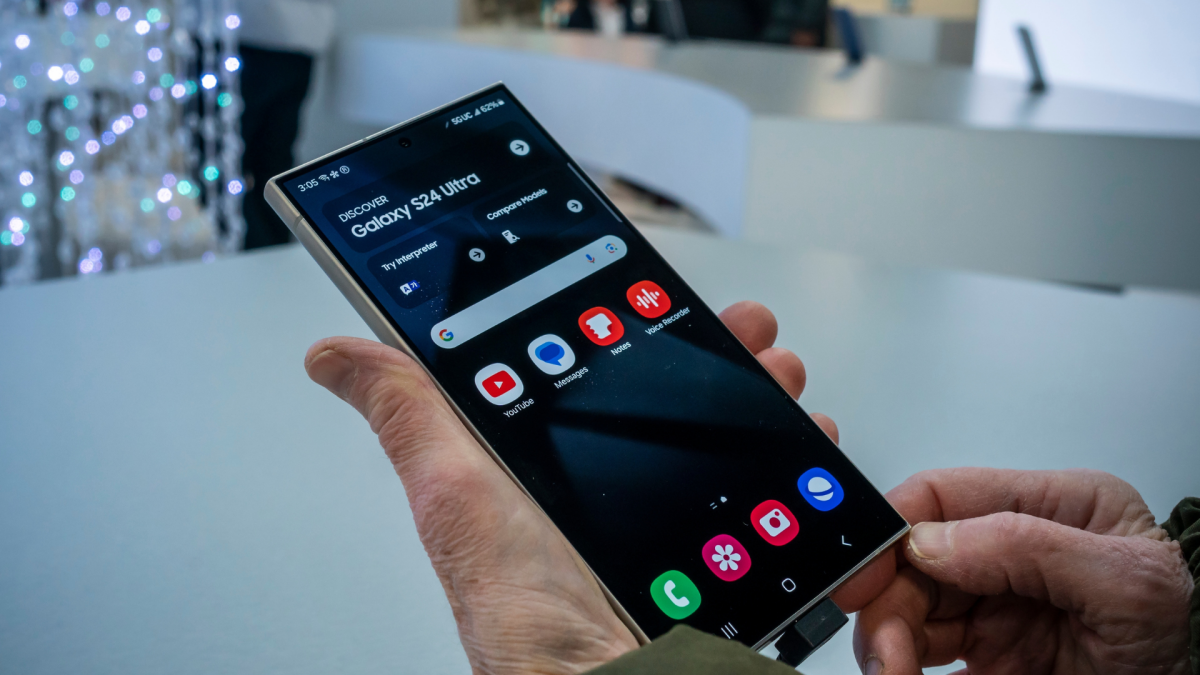
    Any new phone almost certainly comes with a handful of preinstalled apps you’ll never use, regardless of which manufacturer you buy from or which operating system you’re on. Some devices are more bloated than others: Google Pixels have a relatively “clean” build compared to Samsung phones, for example, and don’t typically come with third-party apps and games.

    But you may still want to eliminate apps and features that clutter your home screen, take up valuable space, and create a drag on performance, especially if you have alternatives you like more. On Android, that likely means uninstalling what you easily can and disabling everything else.

    What you can (and can’t) uninstall on Android

    Unfortunately, many preinstalled first-party apps can’t be easily removed. This varies by manufacturer and device—for example, Pixel users can uninstall Google Play Games and Books but are stuck with Chrome, Drive, Maps, and Calculator. As HowToGeek points out, you can delete other pre-selected Google apps added during initial setup, such as the Pixel Watch app and NotebookLM.

    On Samsung Galaxy phones, again, some preinstalled bloatware is locked in, but ZDNET calls out five native apps that most users should delete right away: Global Goals, Samsung Free, Samsung TV Plus, Samsung Shop, and Samsung Kids.

    To uninstall an app on your Pixel, go to the Google Play Store and tap the Profile icon. Tap Manage apps & devices > Manage, select the app you want to remove, and tap Uninstall. On Samsung, go to Settings > Apps, tap the app name, and tap Uninstall > OK. You can also touch and hold the app icon on your home screen and tap or drag to uninstall.


    What do you think so far?

    If you’re absolutely set on removing preinstalled apps that can’t be deleted using the above steps, you can use the Android Debug Bridge (ADB), but these methods are more advanced.

    How to disable preinstalled apps

    Built-in apps that aren’t in use can be disabled, which hides the icon from your app drawer. They’ll still take up space, but at least they’ll be out of sight. Most preinstalled apps can be disabled if you don’t need them, with the exception of critical system apps.

    On your Pixel, go to Settings > Apps > See all apps to select individual apps, and tap Disable at the top of the screen. You can hide preinstalled Samsung apps from your home screen settings: tap Hide apps and tap the icon of the apps you want to disable, the press Done.

    Android Bloatware Delete
    Share. Facebook Twitter Pinterest LinkedIn Tumblr Email
    8okaybaby@gmail.com
    • Website

    Related Posts

    Stanley Tucci Shares His “Perfect Winter Recipe”

    February 4, 2026

    YouTube Just Blocked This Popular Hack for Free Background Play

    February 3, 2026

    5 Foods with as Many Omega-3s as Salmon

    February 3, 2026
    Leave A Reply Cancel Reply

    Top Posts

    Best microwaves to buy 2025, tested and reviewed

    October 8, 202529 Views

    13 best kitchen scales 2025, tested and reviewed

    October 1, 202525 Views

    Best cake tins to buy in 2025, tested and reviewed

    October 8, 202523 Views
    Stay In Touch
    • Facebook
    • YouTube
    • TikTok
    • WhatsApp
    • Twitter
    • Instagram
    Latest Reviews

    Subscribe to Updates

    Get the latest tech news from FooBar about tech, design and biz.

    About

    Welcome to Hywhos.com – your go-to destination for health, nutrition, and wellness tips! Our goal is to make healthy living simple, enjoyable, and accessible for everyone.

    Latest post

    How to Overcome Fear and Prepare for a Cancer Clinical Trial

    February 4, 2026

    Stanley Tucci Shares His “Perfect Winter Recipe”

    February 4, 2026

    Matters of the Heart

    February 4, 2026
    Recent Posts
    • How to Overcome Fear and Prepare for a Cancer Clinical Trial
    • Stanley Tucci Shares His “Perfect Winter Recipe”
    • Matters of the Heart
    • Contrast Therapy Is Big Right Now. Does It Actually Do Anything?
    • Buffalo Chicken Potato Skins – Skinnytaste
    Facebook X (Twitter) Instagram Pinterest
    • About Us
    • Contact Us
    • Privacy Policy
    • Terms and Conditions
    • Disclaimer
    © 2026 hywhos. Designed by Pro.

    Type above and press Enter to search. Press Esc to cancel.